The following is a really well done video by Cisco Chief Security Officer John Stewart on Internet Safety for Kids and Parents. It is a must see.
Internet safety is a very important concern.
For more info on Internet safety for children, visit: PBS.org or NetSmartz Kids .
If you have not signed an Internet Safety Contract with your children, you can find a good (printable) one here.
Happy surfing!
Tuesday, November 10, 2009


Sunday, May 31, 2009
Entering simple VBA code in an Access form
To enter code for an access object, open the form (or other entity that needs code) in Design view.
Right click on the object (in this example, a button) that will require the code. Select the event tab and the property where the code will be used, such as "On click" if you want to make a button do something.
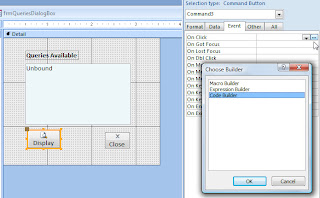
Once you have opened code builder for the desired property, you may enter code to make it all work.
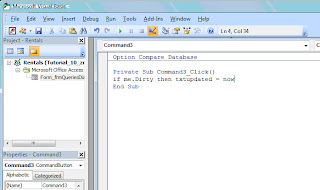
The code example below is actually not meant for a button, but is one of the handiest lines of code I have ever used. It is perfect to add a date /time stamp in the 'txtupdated' (calculated) field. If me.dirty refers to if the object, such as record within a form, and specifies if it has been changed, then txtupdated = now() adds today's date/time to the txtupdated field. Now this useful code is great if you ever need to look at new entries or edits from a certain date range... or just as a nice way to track when data entry has been done. Especially useful if there is more than 1 person using a database.
Right click on the object (in this example, a button) that will require the code. Select the event tab and the property where the code will be used, such as "On click" if you want to make a button do something.

Once you have opened code builder for the desired property, you may enter code to make it all work.
The code example below is actually not meant for a button, but is one of the handiest lines of code I have ever used. It is perfect to add a date /time stamp in the 'txtupdated' (calculated) field. If me.dirty refers to if the object, such as record within a form, and specifies if it has been changed, then txtupdated = now() adds today's date/time to the txtupdated field. Now this useful code is great if you ever need to look at new entries or edits from a certain date range... or just as a nice way to track when data entry has been done. Especially useful if there is more than 1 person using a database.

Wednesday, April 29, 2009
To create a search dropdown for a form in Access, begin by adding a combo box (with the wizard turned on) to the form header.
In the first screen, select “Find a record on my form based on the value I selected in my combo box”.
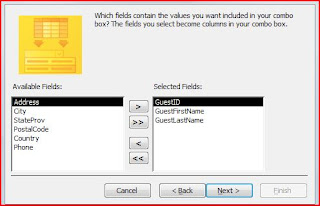
Next, select the field you want to search on. If you have a unique identifier, this is the best one to use. I often add an additional field or two to visually help me be sure I am selecting the record I want. (Additional fields are displayed, but serve no other role.)
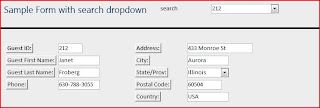
After the fields have been selected, you have the option to hide the key column (which MS recommends), but if this is what you are searching on - - you can’t hide this field, so make sure it unchecked. You can adjust columns size here by dragging the columns to fit.
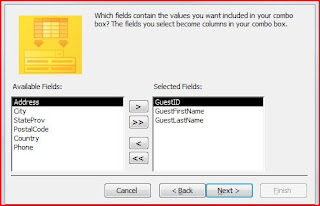
Click Finish and you have a search drop down. Don’t forget to test to make sure it changes the entire record, not just the field you are searching on.
 Note: This was written for Access 2007, but this works the exact same way in Access 2003, 97... and prior versions.
In the first screen, select “Find a record on my form based on the value I selected in my combo box”.

Next, select the field you want to search on. If you have a unique identifier, this is the best one to use. I often add an additional field or two to visually help me be sure I am selecting the record I want. (Additional fields are displayed, but serve no other role.)

After the fields have been selected, you have the option to hide the key column (which MS recommends), but if this is what you are searching on - - you can’t hide this field, so make sure it unchecked. You can adjust columns size here by dragging the columns to fit.

Click Finish and you have a search drop down. Don’t forget to test to make sure it changes the entire record, not just the field you are searching on.
 Note: This was written for Access 2007, but this works the exact same way in Access 2003, 97... and prior versions.
Sunday, April 26, 2009
Ever think about what you want to be when you grow up?
Ever think about what you want to be when you grow up?
I do. Of course, I am grown up. In today's society, when jobs change (or may be subject to change at any minute), it is always a legitimate question, no matter how old (or young you are.)
I took my oldest with me to work for "Take your son/ daughter to work day" last week. It was neat to be able to show her "what Mommy does". I want my children to understand all the opportunities that still exist in our society and to inspire them in school. Okay, I teach so it is really important to me.
With this in mind, I received an interesting email encouraging continued education recently.
It lists 10 hot IT skills in 2009. So for any of you searching for what you want to be when you grow up, how to reinvent yourself, or just want some direction for continuing education, click on the link above for the full article.
A quick list is:
1. Virtualization
2. Web 2.0
3. Networking/Windows Administration
4. ITIL: The Information Technology Infrastructure Library
5. IT Architect/Project Management
6. IT Security
7. Wireless
8. Telecommunications
9. Programming Languages (C, C++, C)
10. Business Skills:
I do. Of course, I am grown up. In today's society, when jobs change (or may be subject to change at any minute), it is always a legitimate question, no matter how old (or young you are.)
I took my oldest with me to work for "Take your son/ daughter to work day" last week. It was neat to be able to show her "what Mommy does". I want my children to understand all the opportunities that still exist in our society and to inspire them in school. Okay, I teach so it is really important to me.
With this in mind, I received an interesting email encouraging continued education recently.
It lists 10 hot IT skills in 2009. So for any of you searching for what you want to be when you grow up, how to reinvent yourself, or just want some direction for continuing education, click on the link above for the full article.
A quick list is:
1. Virtualization
2. Web 2.0
3. Networking/Windows Administration
4. ITIL: The Information Technology Infrastructure Library
5. IT Architect/Project Management
6. IT Security
7. Wireless
8. Telecommunications
9. Programming Languages (C, C++, C)
10. Business Skills:
Saturday, April 11, 2009
Social Media
I read an excellent blog post today about social media. strangers-with-business-cards by Brian Link.
The question posed (in my words), should you share your *brand*, meaning you, with anyone you meet? The parallel was like handing business cards to strangers.
While Brian was focusing on professionals twittering, blogging, posting to social networking sites, etc., this can hold value for both professionals and people enjoying Facebook, MySpace and other sites to connect with friends as well.
My take? Careful what you post. I have personally done online searches for people I am going to meet professionally before that first meeting and I know this is a common practice. Linked in now even offers reference searches. Anything posted may be there in eternity - or could at least be searched in backup files for an online provider if presented with a search warrant. More importantly, save yourself potential embarassment about that great party last night and think before you post.
The question posed (in my words), should you share your *brand*, meaning you, with anyone you meet? The parallel was like handing business cards to strangers.
While Brian was focusing on professionals twittering, blogging, posting to social networking sites, etc., this can hold value for both professionals and people enjoying Facebook, MySpace and other sites to connect with friends as well.
My take? Careful what you post. I have personally done online searches for people I am going to meet professionally before that first meeting and I know this is a common practice. Linked in now even offers reference searches. Anything posted may be there in eternity - or could at least be searched in backup files for an online provider if presented with a search warrant. More importantly, save yourself potential embarassment about that great party last night and think before you post.
Thursday, April 9, 2009
Cool MS Office Tip
I discovered a fun tip in MS Word today... I already love the Quick Access Toolbar. It lets you put frequently used buttons at the very top to save changing back and forth within the ribbons quite as much.
I just stumbled upon an easy way to get buttons onto the Quick Access Toolbar. Right click on ANY button and one of the choices is Add to Quick Access Toolbar.
This may be a little thing, but it allows you to spontaneously add something to this, while you are in the middle of doing something else, and then continue working.
Small things can make a big difference...
I just stumbled upon an easy way to get buttons onto the Quick Access Toolbar. Right click on ANY button and one of the choices is Add to Quick Access Toolbar.
This may be a little thing, but it allows you to spontaneously add something to this, while you are in the middle of doing something else, and then continue working.
Small things can make a big difference...
Wednesday, April 1, 2009
Fear not
Today I want to pass along someone else's smart ideas:
Written by Terry Sweeney
4/1/2009http://www.internetevolution.com/author.asp?doc_id=174629&f_src=securitysentinel
The basic concept in this article is vigilance (take care of your online life), but get beyond fear. Anyway, he says it far better, so check out what Terry has to say.
Julie :-)
Subscribe to:
Posts (Atom)